
How to Add an Admin on Instagram: A Complete Step-by-Step Guide
Managing the Instagram account is easier when you have the right people to help you. Whether you are working with a social media manager, running your business, or collaborating with a marketing agency, you can give someone admin access to allow them to manage your account without sharing login details.
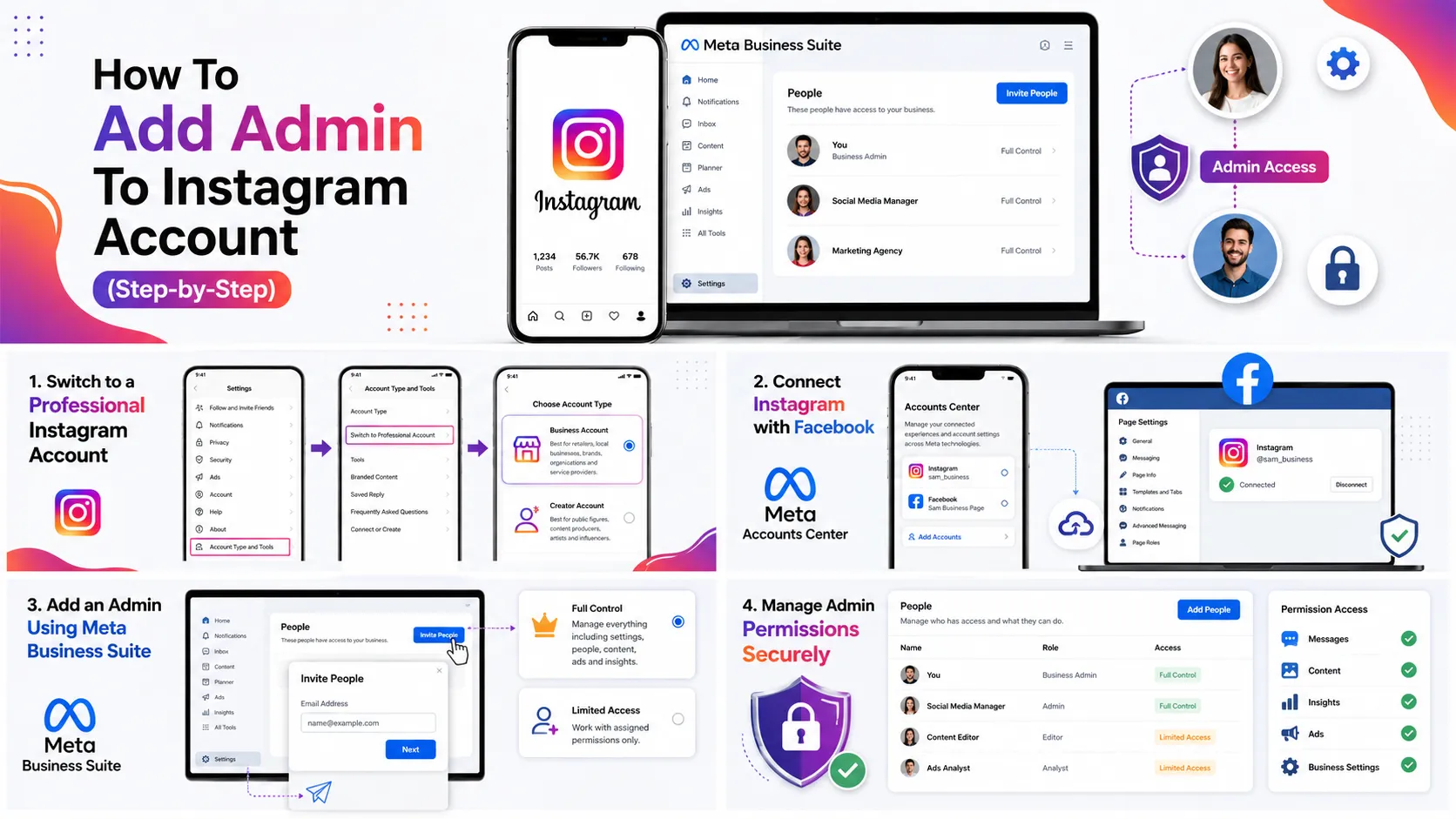
Instagram does not have a direct "add admin" button. But Meta provides Meta Business Suite and Accounts Center features to easily add an admin to your Instagram account and manage access. Here we tell you the prerequisites and methods to add an admin to your account and keep it secure.
Things You Need Before Adding an Admin
Meet the following requirements before adding admins.
Switch to Business Account
Admin access through Meta is available for Professional accounts, including creator and business accounts. If your account is still personal, then you should follow the given steps.
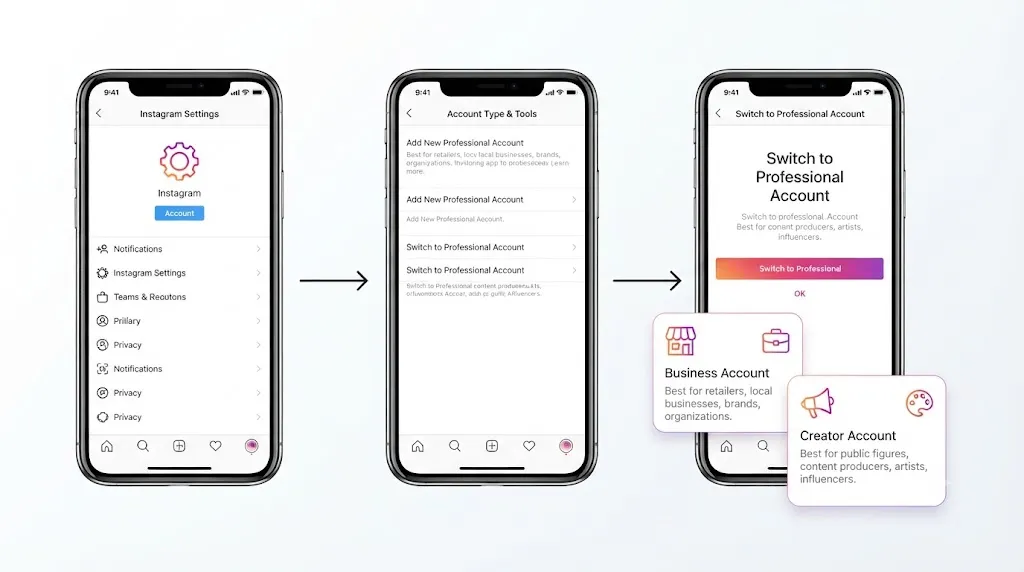
- Open Instagram.
- Go to Settings.
- Select Account Type and Tools.
- Tap Switch to a Professional Account.
- Choose either Business Account or Creator Account
A Business account is typically recommended for companies and brands.
If you are not sure which account type is best, then you can read our guide Types of Instagram Accounts and understand the difference between personal, business and creator accounts.
Connect IG account with Facebook
Meta Business Suite only works well when your IG account is connected to your FB page. Follow these steps to connect your account:
- Open the Instagram app.
- Visit profile
- Go to setting
- Open Meta Accounts Center
- Choose Add Accounts if your Facebook account hasn't been connected yet.
- Follow the on-screen instructions.
Once it is connected, you can easily manage both accounts together.
Methods to add an admin to IG accounts
Here are the different methods you can follow to add an admin to your Instagram account
Method 1: Add an Admin Using Meta Business Suite
Using Meta Business Suite is the easiest way to add an admin to your account. Here are the steps to perform it:
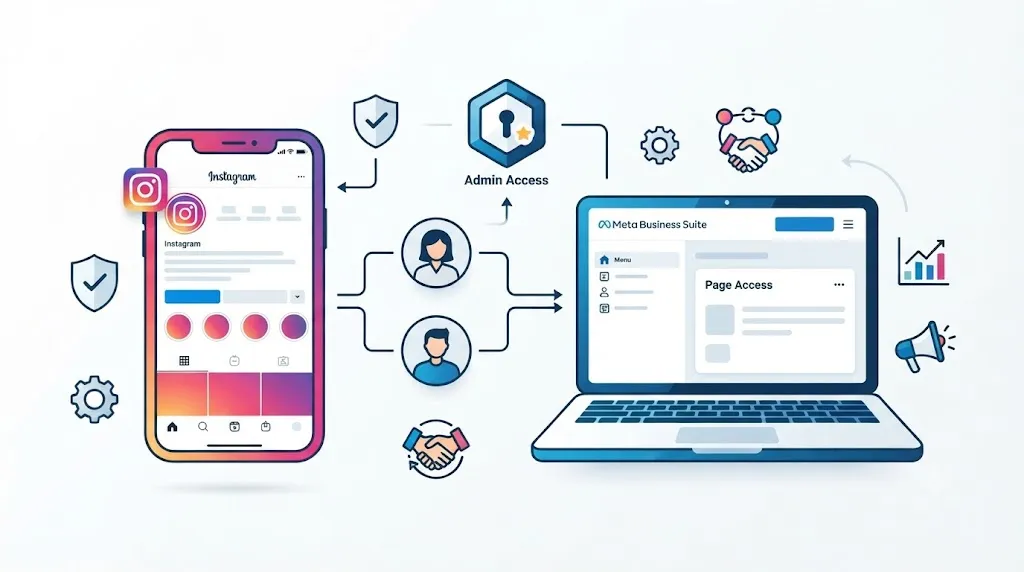
Open Meta Business Suite
Open your web browser and visit the Facebook business page. Sign in using your Meta or Instagram account.
Open Business Settings
From the left-hand menu, click on settings. If prompted, fill your business account details. After this, you'll see your business management dashboard.
Invite a New Person
Tap on 'invite' people in business settings. Enter the email address of the person you want to add and tap on the "next" button. Meta will prepare an invitation for that user.
Give Full Control
You'll now choose the person's role. Select full control. This permission gives the user administrative access and allows them to manage IG and FB posts, assign permissions, access advertising tools, manage business settings, and view insights. If you don't want to give full admin rights, you can choose limited permissions instead.
Select Your Instagram Account
- Under Business Assets,
- Choose your Instagram account.
- Click Confirm.
Review Permissions
Meta allows you to customize permissions. You can easily grant access to messages, content management, analytics, advertising, and business settings. Review everything carefully and click on the Next → Invite option.
Confirm Access
Once your invitation is accepted by the user, the person will get access to your Instagram account. You can ask them to log in to Meta Business Suite to confirm they can access the assigned Instagram profile. If they cannot see the account, review the assigned permissions and make sure they were added to the correct Business Portfolio.
Along with assigning admins, Meta Business Suite also facilitates automation features. Learn more about it in our Facebook Automation Guide.
Method 2: Add an Admin Through Meta Accounts Center
If your IG account is already connected to Meta, then you can manage account access through the Accounts Center. Here's how you can add an admin to an Instagram account via Meta Accounts Center:
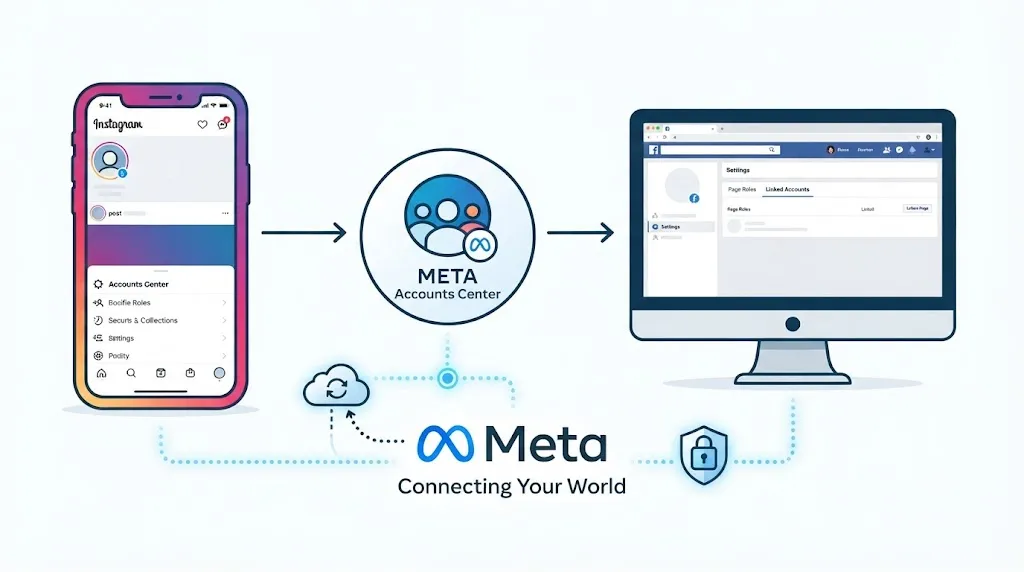
- Open IG app and navigate to settings.
- Select ‘See More in Accounts Center’
- Tap on the 'Add Accounts' option
- Add the Instagram or Facebook account you want to connect.
- Open ‘Information and Permissions’
Here you can manage connected accounts and adjust access levels within your Meta setup.
Method 3: Add Admin by Facebook Page
Another method to add an admin to an Instagram account is through a Facebook page. Here's how to do it:
Make Sure Instagram Is Linked
Open Instagram and go to:
- Settings and Privacy
- For Professionals
- Business Tools and Controls
Click on 'Connect a Facebook Page'. Complete the linking process if you haven't done it already.
Open Facebook
Open the Facebook app and switch to the business page.
Open Page Settings
Go to the menu, settings, and page settings. Scroll to New Pages Experience. Select 'page access'.
Add New Person
Click on the "add new" option, and search for the person you want to add as an admin. Choose their profile.
Grant Full Access
Enable "full access" and confirm the invitation. Once the user accepts the invitation, the person is able to manage their connected IG account.
Conclusion
Adding an admin to your IG account is the smart way to collaborate and keep your account secure. The safe method is by using Meta Business Suite, where you can invite users, assign permissions, and control access without sharing login details.
Before inviting anybody, you should ensure that your Instagram account is set up as a Professional account and linked to your Facebook Page or Meta Business account. Once connected, adding admins only takes a few minutes and gives your team the tools they need to manage your Instagram efficiently while maintaining account security.
Ready to simplify your social media management? Download SocialRouter and seamlessly manage multiple accounts!
FAQs
Can I add an admin to a personal Instagram account?
No, you can not add the admin to a personal IG account. You have to switch to a professional account, either creator or business. Personal accounts do not support admin access through Meta Business Suite or business management tools.
Do I need a Facebook Page to add an Instagram admin?
Yes, you need the Facebook page to add an Instagram admin and manage permissions through Meta Business Suite. It helps you provide admin access to team members securely.
Will the new admin know my Instagram password?
No, the new admin does not know your Instagram password. You can easily grant access through Meta Business Suite without sharing password details.
Can we remove an admin from my Instagram account later?
Yes, you can remove the admin from the Instagram account anytime through Facebook page settings or Meta Business Suite. It ensures complete control over access to your Instagram account.
What is the difference between full control and limited access?
Full control allows you to manage permissions, settings, content, messages, and business assets. Limited access grants specific permissions only and helps you maintain better control and security.